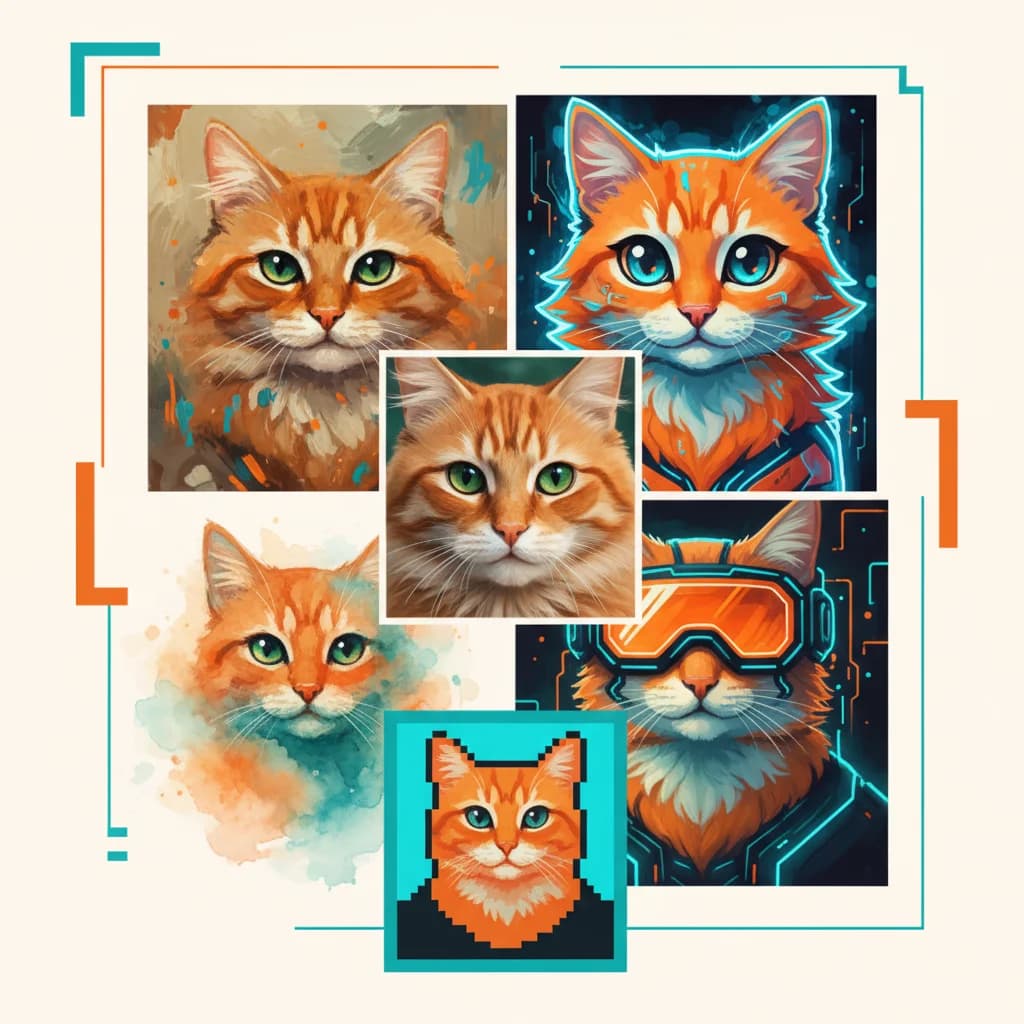
How to Change Image Style with AI — 5 Free Methods That Actually Work
Why Change Image Style with AI?
Whether you are a content creator, designer, or just someone who wants cooler photos, AI image style transfer opens up creative possibilities that used to require years of artistic training. You can turn a selfie into an anime character, a landscape into an oil painting, or a product photo into a pop art poster — all in seconds.
Method 1: AI Style Transfer Tools (Best for Beginners)
The easiest way is to use a dedicated AI style transfer tool like PicBoil's Image to ImagePicBoil's Image to Image/image-to-image. Here is how:
- Upload your photo
- Describe the style you want (e.g., "watercolor painting of this landscape")
- Click generate and wait a few seconds
The advantage of this approach is simplicity. You do not need any technical knowledge — just describe what you want in plain language.
Method 2: Detailed Prompt Engineering
If you want more control over the result, use detailed prompts that specify the style precisely. Here are some effective prompt patterns:
For artistic styles: - "Transform this photo into an impressionist oil painting with visible brush strokes and vibrant colors" - "Convert this portrait into a Studio Ghibli anime style illustration"
For mood changes: - "Reimagine this daytime photo as a moody night scene with dramatic lighting" - "Make this photo look like it was taken on vintage 35mm film with light leaks"
For creative effects: - "Turn this product photo into a minimalist vector illustration" - "Transform this cityscape into a cyberpunk neon-lit scene"
Method 3: Style Reference Images
Some AI tools let you provide a reference image alongside your prompt. This gives the AI a concrete example of the style you want. Try combining a style reference with a text description for the best results.
Method 4: Iterative Refinement
Do not expect perfection on the first try. The best approach is iterative:
- Start with a clear style description
- Review the result and identify what you want to change
- Adjust your prompt with more specific instructions
- Repeat until you get the desired result
Each iteration teaches you what the AI responds to, making you better at crafting effective prompts.
Method 5: Style Mixing and Layering
Advanced users can combine multiple style descriptions in a single prompt:
- "Van Gogh's starry night color palette applied to a modern cityscape"
- "Japanese ukiyo-e woodblock print style mixed with cyberpunk aesthetics"
- "Renaissance portrait painting with modern street photography composition"
These hybrid styles often produce the most unique and striking results.
Pro Tips for Better Results
- Be specific: "Watercolor" is okay, but "loose watercolor with wet-on-wet technique and soft color bleeding" is much better
- Describe the output medium: Mention if you want it to look like a painting, illustration, photograph, or digital art
- Include lighting and mood: These elements dramatically affect the final result
- Keep it focused: One strong style direction works better than mixing too many ideas
Try It Now for Free
Ready to change your image style? Head to PicBoil's AI Style TransferPicBoil's AI Style Transfer/image-to-image and upload any photo. Describe the style you want and see the transformation in seconds. No signup required — start creating for free today.
Try this prompt in PicBoil
Try this prompt in PicBoilRelated Posts
What is AI Style Transfer? Complete Guide to Transforming Images with AI
Discover how AI style transfer works and how you can use it to transform any photo into stunning art. Learn the techniques, tools, and creative possibilities of AI-powered image style transformation.
AI Photo Transfer: Transform Your Photos into Art — Free Online Guide
Learn how AI photo transfer works and discover the best free tools to transform your everyday photos into stunning works of art. Step-by-step tutorial with examples.
Free AI Image Generator Guide: Create Korean-Style Art
A comprehensive guide for Korean users on using free AI image generators, with tips on Korean-style prompts and creative techniques.